

How to Create a WordPress Website


WordPress is a great choice for anyone looking to create WordPress websites, whether you’re a total beginner or an experienced web developer.
Its ease of use, flexibility, and robust features make it the go-to platform for millions of websites worldwide.
Whether you want to start a blog, showcase your portfolio, build an online store, or create a professional business site, WordPress provides the tools and resources to help you succeed.
Here’s a simple guide to making a website using WordPress:
Step 1: Choose a Domain Name
What is a Domain: A domain name is your website’s address (e.g., your website.com).
Pro Tip: Keep it short, memorable, and relevant to your content.
Step 2: Pick a Web Hosting Provider
Web hosting is where your website files are stored and made accessible online.
Popular Options:
Hosting.com (formally A2): User-friendly and recommended by WordPress.
SiteGround: Known for excellent customer support.
Step 3: Register Your Domain Name
You can often register your domain name directly through your hosting provider. You can also use a service like DomainIt or Namecheap.
Many hosting providers offer a free domain for the first year when you sign up for a hosting plan, SiteGround, etc.
Step 4: Install WordPress
Most hosting providers have a one-click WordPress installation process. Look for an option like “Install WordPress” in your hosting dashboard.
If your host doesn’t offer one-click installation, you can manually install WordPress by downloading it from WordPress.org and following their setup instructions.
Step 5: Choose a WordPress Theme
A theme controls your website’s appearance. Some WordPress come installed with a default theme. You can choose to keep the default, or find one that suits your website.
In your WordPress dashboard, go to “Appearance” >> “Themes” >> “Add New.” You can browse free themes or upload a premium theme.
Popular Options:
GeneratePress: Lightweight and customizable.
Step 6: Customize Your Website
Use the WordPress Customizer to change your theme’s colors, fonts, and layout. Each theme has their own options to adjust.
To customize your theme, on your admin dashboard, go to “Appearance” >> “Customize” in your WordPress dashboard.
You might consider to create a ‘Coming Soon’ page to use as the face of your website while you work on the site. When you’re ready to go live, simply change the settings, and return to actual home page view.
Step 7: Add Content
Content for a website refers to the text, images, videos, and other media that make up the information presented on the site.

High-quality, relevant content is essential for attracting visitors, improving search engine rankings, and achieving your website’s goals.
Content is added to both pages and posts.
- Pages: Create essential ‘static’ pages like Home, About, Services, and Contact by going to Pages >> Add New.
- Blog Posts: If you’re blogging, go to Posts >> Add New to write your posts.
- Media: Upload images, videos, digital products and other media by going to Media >> Add New.
Step 8: Install Plugins
Plugins add functionality to your WordPress site (e.g., contact forms, SEO tools).
Go to Plugins >> Add New to open a new panel. Search for any plugins you want or need.
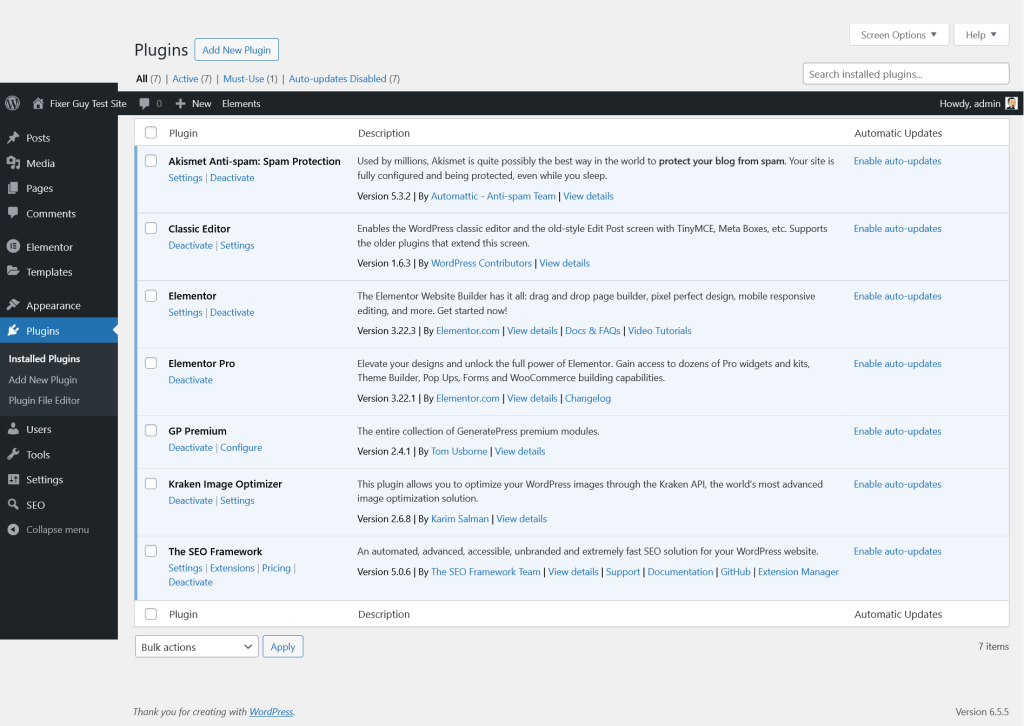
Keep the number of plugins to a minimum for best website results, including maintaining fast website speed.
Here are some essential plugins:
- RankMath: For search engine optimization.
- WP-Optimize: Cleans the database, compresses images and caches pages.
Step 9: Review and Launch
Preview: Check how your site looks on different devices, (laptop or phone) by using the WordPress Customizer.
Launch: When you’re satisfied with your site, make it live by removing any “Under Construction” or “Coming Soon” plugins or notices.
Step 10: Maintain Your Website
Updates: Regularly update WordPress, your theme, and plugins.
Backups: Schedule regular backups of your site.
Security: Consider installing a security plugin like Wordfence to protect your site from threats.
Congratulations! Your website is now live.
Now that your WordPress website is live, it’s important to take on the responsibility of maintaining it to ensure its long-term success.
Learn how to manage updates, security, backups, and content by exploring the free resources and tools here on Website Fixer Guy.
Not sure? Take the Website Maintenance Assessment to see where you might need help with regular website maintenance options.
— Rudy | WebsiteFixerGuy.com | © 2026